Your cart is currently empty!
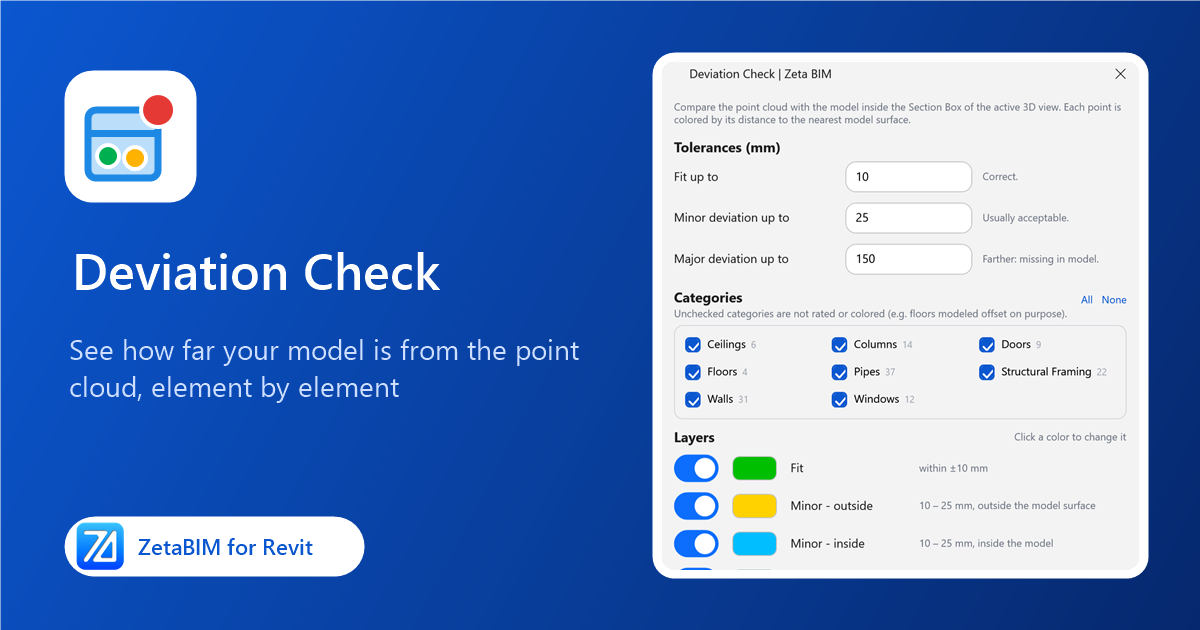
How close is your scan-to-BIM model to the scan? Deviation Check shows the Revit point cloud deviation point by point and element by element, so you can fix problems before delivery.
What the Revit point cloud deviation check does
Deviation Check compares the point cloud with your model inside the Section Box of a 3D view. Every point is colored by its distance to the nearest model surface, and a report lists the elements from worst to best. It is a quick way to quality-check a scan-to-BIM model before delivery.
Before you start
- Open a 3D view where the point cloud is visible.
- Turn on the Section Box and fit it around the area to check. A smaller box runs faster.
Steps
-
Click Deviation (Zeta BIM tab › Manager).
-
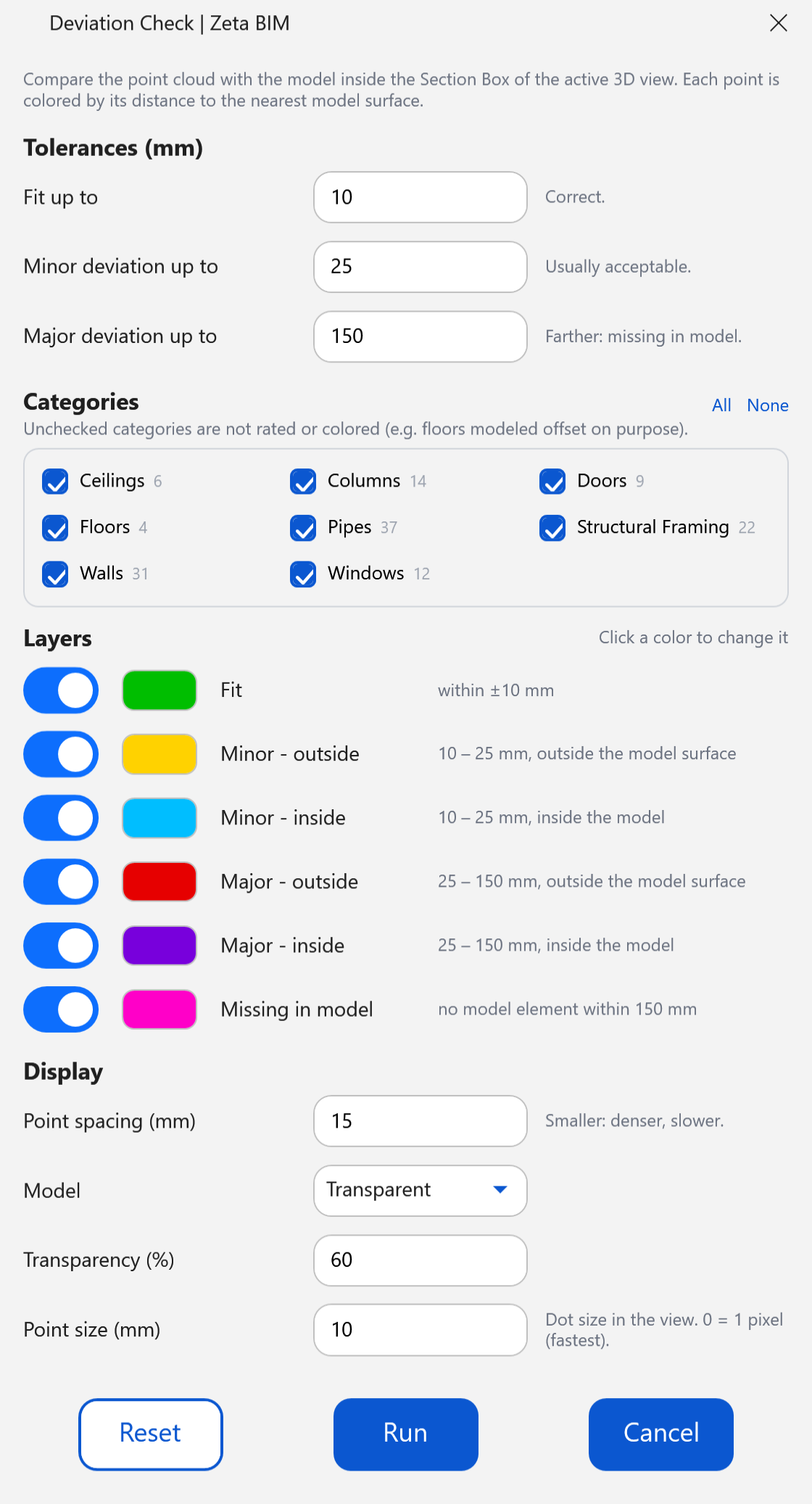
Set the tolerances, categories and display options, then click Run.
-
A new 3D view opens with the colored points over a grey model, together with the report window.
-
In the report, click a row to select the element in Revit and double-click to zoom to it. Export CSV saves the report for your QA records.
Settings
Tolerances (mm)
| Setting | Default | Meaning |
|---|---|---|
| Fit up to | 10 | Points closer than this are correct (green). |
| Minor deviation up to | 25 | Usually acceptable. |
| Major deviation up to | 150 | Needs fixing. Points farther than this from any element are Missing in model. |
Categories: untick a category to leave it out of the check, for example floors modeled with an intended offset. The number next to each category is how many elements it has in the box.
Layers: Fit, Minor (outside / inside), Major (outside / inside) and Missing in model. Outside means the scan is in front of the model surface, inside means behind it. Switch a layer off to hide it, or click its color to change it.
Display
| Setting | Default | Meaning |
|---|---|---|
| Point spacing | 15 mm | Smaller shows more points but takes longer. |
| Model | Transparent | Show the model transparent, solid or hidden behind the points. |
| Transparency | 60 % | For the transparent model. |
| Point size | 10 mm | Dot size in the view; 0 draws 1-pixel points (fastest). |
Reset restores the default settings.
The report
- One row per element: category, type, number of points, the share of Fit / Minor / Major points, mean and worst deviation, and a status.
- Worst is signed: + the scan is outside the model surface, − inside.
- Filter the list to Wrong only or Wrong and Check.
- Change point size, model look and visible layers without running again.
- Live: when you move or edit an element, the points around it are recolored and the report updates at once, so you can see a fix work.
Good to know
- The original point cloud is hidden in the result view; your original 3D view is not changed.
- Results are kept while Revit is open. Running Deviation from a result view lets you show its report again or start a new check.
Related
Get ZetaBIM
ZetaBIM is a Revit plugin for scan-to-BIM teams. See the complete guide to the Revit point cloud plugin workflow. Download ZetaBIM to try it, browse more ZetaBIM tutorials, or watch the videos on the ZetaBIM YouTube channel.
About The Author