Your cart is currently empty!
Checking a model usually means screenshots, an Excel list and many emails. Model Check brings the Revit model check into Revit itself: capture the problem, draw on it, assign it, and follow it until it is fixed and verified.
Why run your Revit model check this way
- Everything in one place. Issues, images and elements stay linked to the model.
- One click to the problem. Zoom to element takes you straight to it.
- Clear status. Each issue is Open, Fixed or Verified, with who fixed and who checked it.
- No server. Use a shared team folder, or a Google Sheet if you also want to follow issues in a browser.
Set up the team (once per project)
-
Click Model Check on the Zeta BIM tab. A dockable panel opens.
-
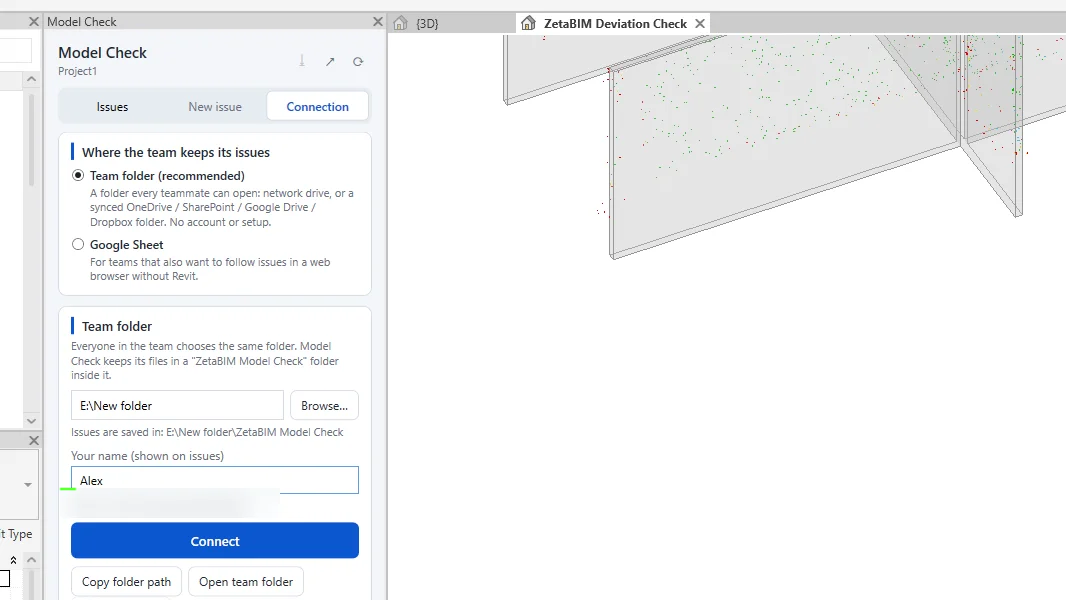
Open Connection and choose where the team keeps its issues:
- Team folder (recommended): a network drive or a synced OneDrive, SharePoint, Google Drive or Dropbox folder. Everyone chooses the same folder.
- Google Sheet: the team leader copies the template sheet and publishes it, then sends the team link.
-
Enter your name, which is shown on issues, and click Connect.
Report an issue
-
Zoom the view to the problem.
-
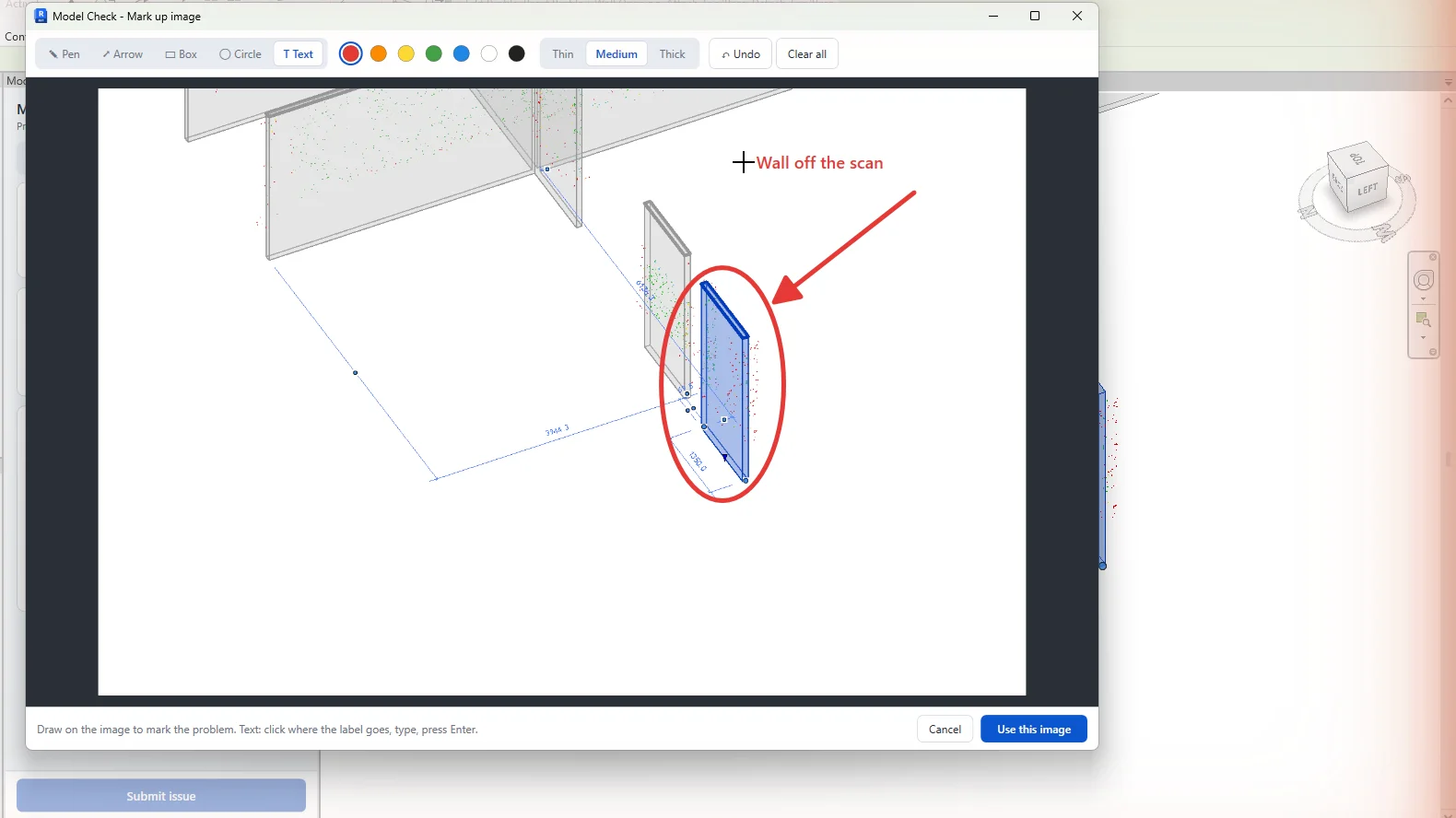
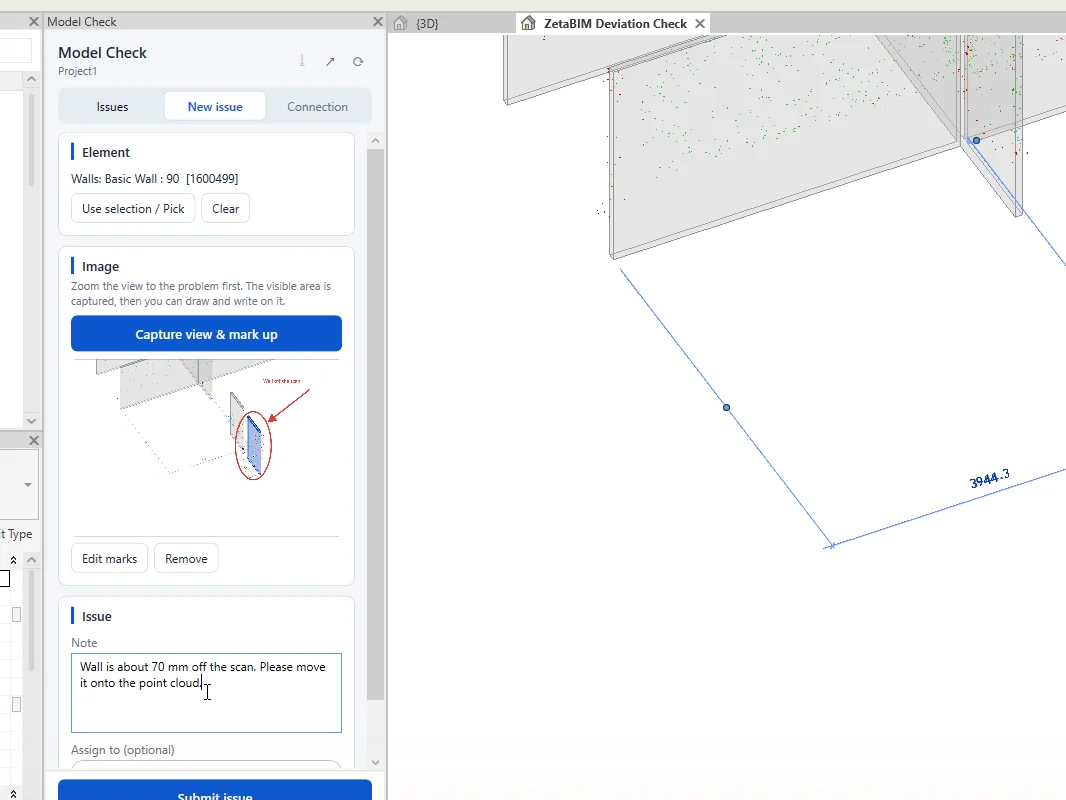
Click New issue and Capture view & mark up.
-
Draw on the image with Pen, Arrow, Box, Circle or Text, then click Use this image.
-
Click Use selection / Pick to link the elements.
-
Write a Note, optionally Assign to a teammate, and save.
Fix and verify
-
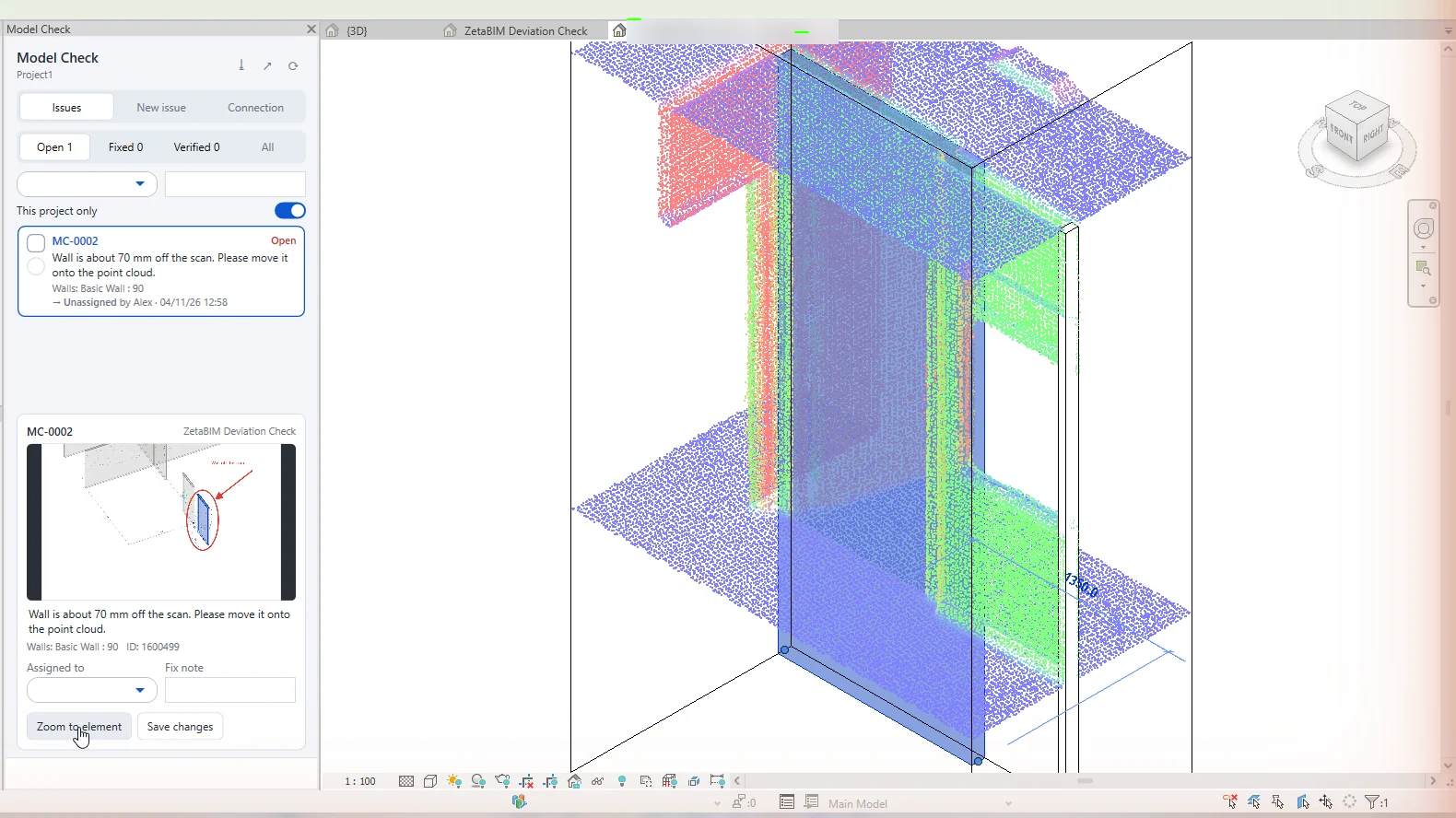
Click an issue to see its image and note; Zoom to element shows it in the model.
-
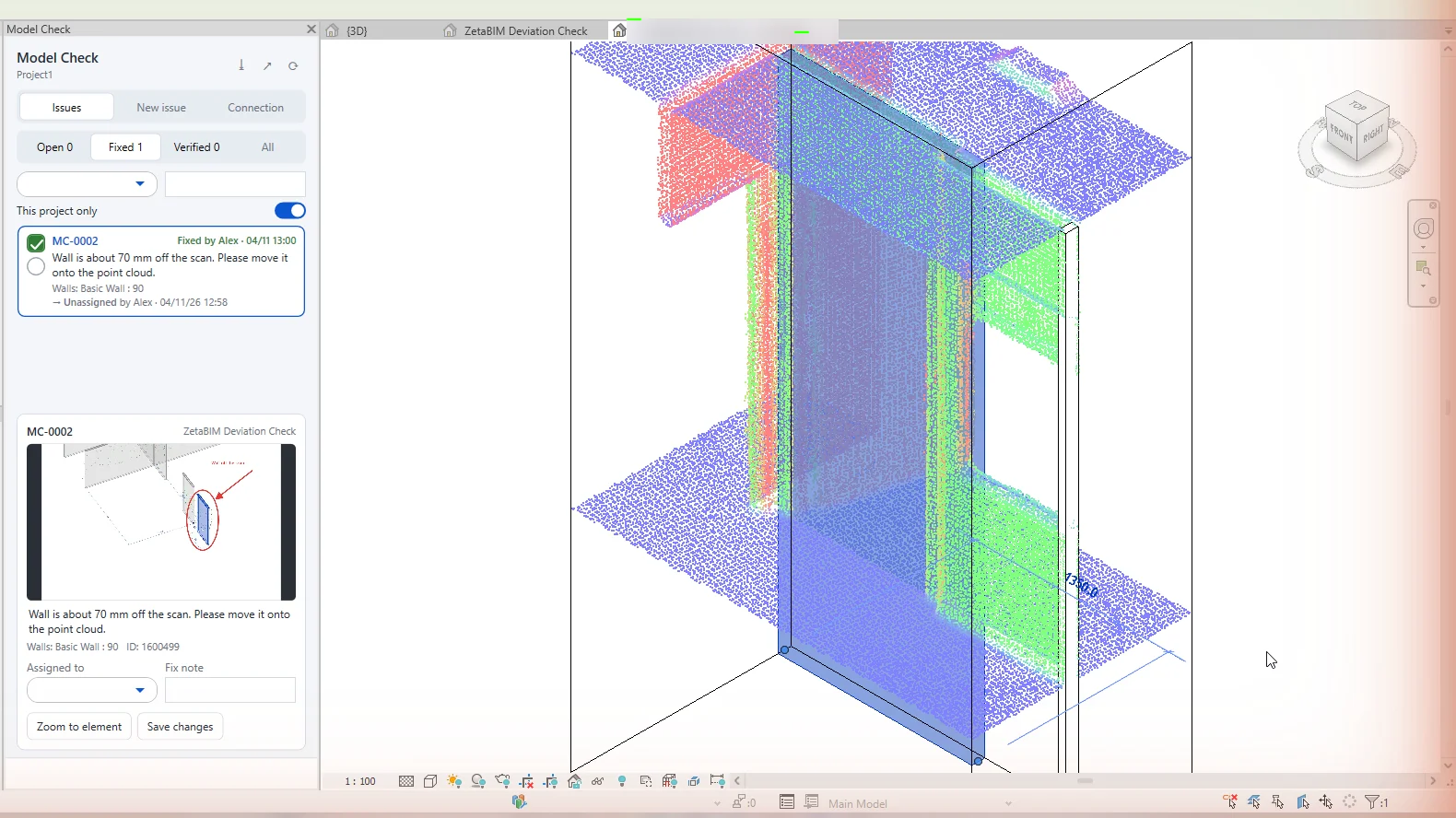
Tick Fixed when done and add a fix note. Your name is saved as Fixed By.
-
The leader or checker ticks Verified after a second check.
-
Filter by status or person, search by ID, note or element, and keep This project only on.
Export
Export to Excel saves all issues as an .xlsx file with the images included, for meetings or clients.
Related
Get ZetaBIM
ZetaBIM is a Revit plugin for scan-to-BIM teams. See the complete guide to the Revit point cloud plugin workflow. Download ZetaBIM to try it, browse more ZetaBIM tutorials, or watch the videos on the ZetaBIM YouTube channel.
About The Author