Your cart is currently empty!
Revit has no direct way to select elements by material. Filter Material adds it: you filter material in Revit from any selection and keep only the elements that use the material you choose.
Why filter material in Revit
- Check a material quickly. See every wall, floor or family that uses a given concrete or finish.
- Find missing materials. The <By Category> option finds elements where a material is not set, before you hand over the model.
- Edit in bulk. With the elements selected, change parameters, hide them or isolate them in one go.
Steps
- Click Filter Material (Zeta BIM tab › Manager).
- Select the elements to search in. A window selection over the area is fine. Click Finish.
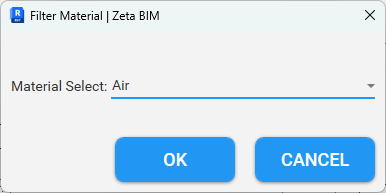
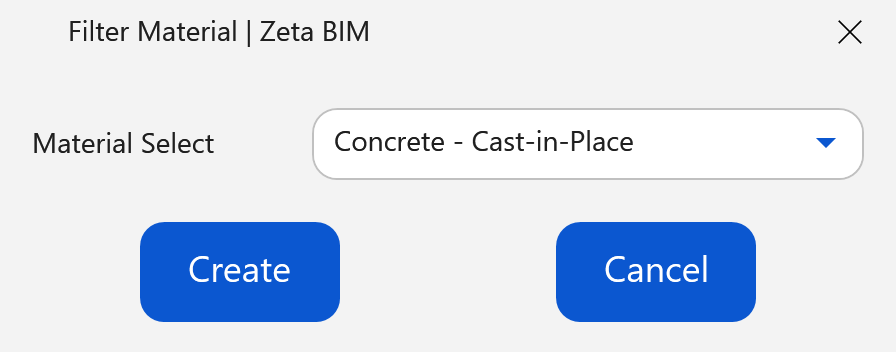
- Choose the material in Material Select and click Create.
- Only the elements that use that material stay selected.
What counts as using a material
- The material of the element’s geometry, including the layers of walls, floors and roofs.
- Paint applied to a face.
- <By Category> selects elements with an empty material parameter, a layer without a material, or a face without its own material.
Only model elements are checked; annotations and views are ignored.
Tip
Use Material Face to copy the exact name of a material from a face, then find it in the list.
FAQ
Can I filter several materials at once?
Run the tool once per material. Each run keeps only the matching elements, so you can also narrow a selection step by step.
Does it change the model?
No. Filter Material only changes the selection. Nothing is modified, so there is nothing to undo.
Why is an element missing from the result?
It may not be a model element, or its material may come from the category default. In that case, try <By Category>.
Related
Video
Get ZetaBIM
ZetaBIM is a Revit plugin for scan-to-BIM teams. See the complete guide to the Revit point cloud plugin workflow. Download ZetaBIM to try it, browse more ZetaBIM tutorials, or watch the videos on the ZetaBIM YouTube channel.
About The Author