Your cart is currently empty!
Fit Arch: Revit Point Cloud Plugin to Model Walls, Doors and Windows (Scan to BIM)
By
By
Looking for a Revit point cloud plugin that turns a laser scan into an as-built model fast? Most scan-to-BIM work still means hours of tracing walls, measuring thicknesses and guessing opening sizes by eye. Fit Arch, part of the Zeta BIM add-in for Autodesk Revit, cuts that work down to a few clicks. Click a wall face in the point cloud and you get a wall at the right thickness. Pick two corners of an opening and you get a door or window at the size that was measured.
This guide covers what Fit Arch does for point cloud to Revit modeling and then walks through each of its three tools: Wall, Door and Window.
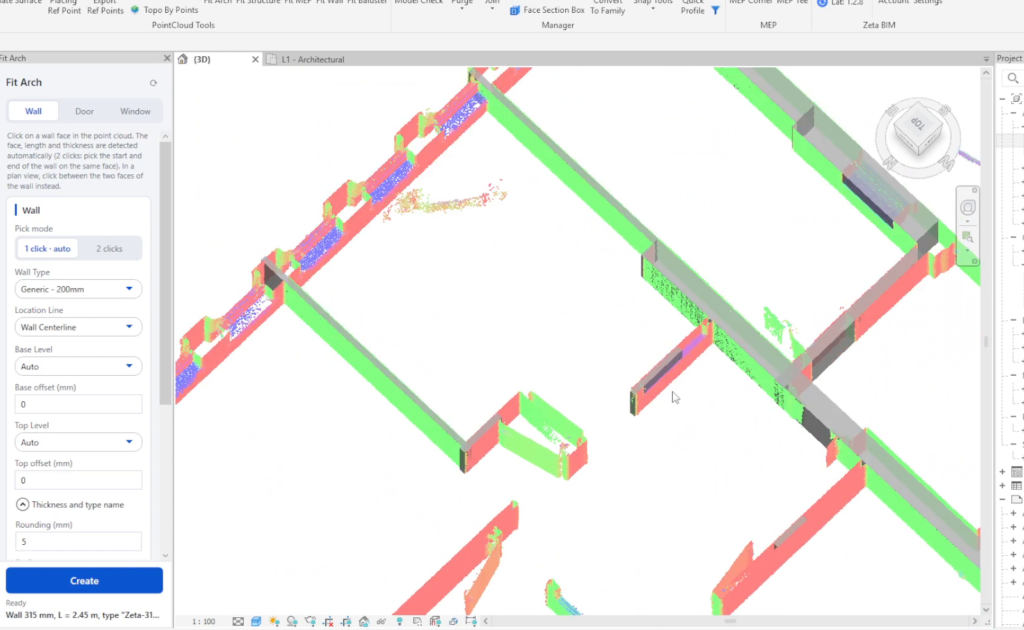
Walls modeled with Fit Arch (grey) over the point cloud in Revit.
Zeta-410mm. Fit Arch creates the type if it doesn’t exist and reuses it if it does.After each element is created, the status line at the bottom of the panel shows what was made, for example Wall 410 mm, L = 4.05 m.
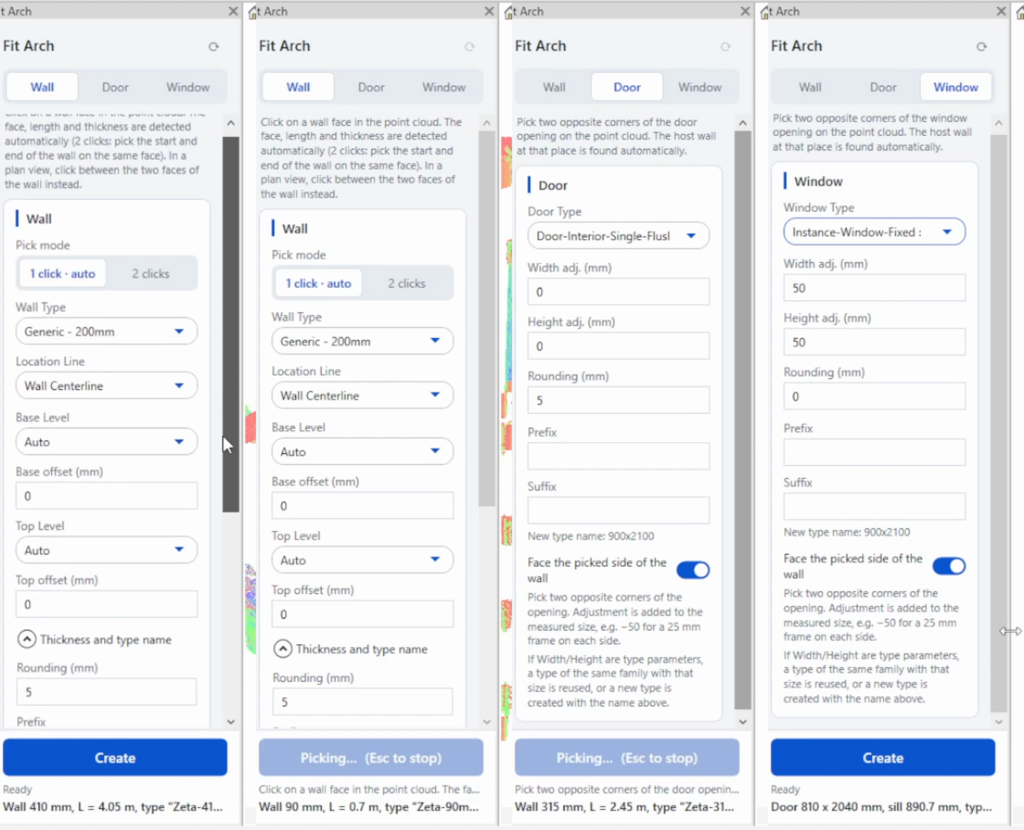
The Fit Arch panel: Wall, Door and Window tabs.
Click a wall face in the point cloud and Fit Arch builds the wall at the measured length and thickness.
Settings
| Setting | What it does |
|---|---|
| Pick mode | 1 click · auto: click once and the wall’s extent is detected. 2 clicks: click the start and end of the wall on the same face. |
| Wall Type | The base type that new wall types are copied from (for example Generic – 200mm). |
| Location Line | The line the wall is placed on, usually Wall Centerline. |
| Base Level / Top Level | Auto picks the levels nearest the scanned wall. You can also choose levels yourself. |
| Base offset / Top offset (mm) | Offsets from the base and top levels. |
| Rounding (mm) | Rounds the measured thickness, for example to the nearest 5 mm. |
| Prefix / Suffix | Used in the new type name, for example Zeta- + thickness + mm gives Zeta-410mm. |
| Create wall type by thickness | Creates (or reuses) a wall type for each measured thickness. |
| Snap to project axes / grids | Straightens walls that are within the angular tolerance of an axis or grid. |
| Angular tolerance (°) | How far off an axis a wall can be and still snap, for example 5°. |
How to use it
In a plan view, click between the two faces of the wall instead of on a face.
Pick two opposite corners of a door opening and Fit Arch places a door at that size. It finds the host wall for you.
Settings
| Setting | What it does |
|---|---|
| Door Type | The door family and type to use, for example Door-Interior-Single-Flush. |
| Width adj. / Height adj. (mm) | Added to the measured size. Use −50 to allow for a 25 mm frame on each side. |
| Rounding (mm) | Rounds the final width and height, for example to 5 mm. |
| Prefix / Suffix | Added to the new type name. The panel previews it, for example 900x2100. |
| Face the picked side of the wall | Flips the door to face the side of the wall you picked from. |
If the family’s width and height are type parameters, Fit Arch reuses a type that already has that size. If there isn’t one, it creates a new type with the name shown in the panel.
How to use it
Door 810 x 2040 mm.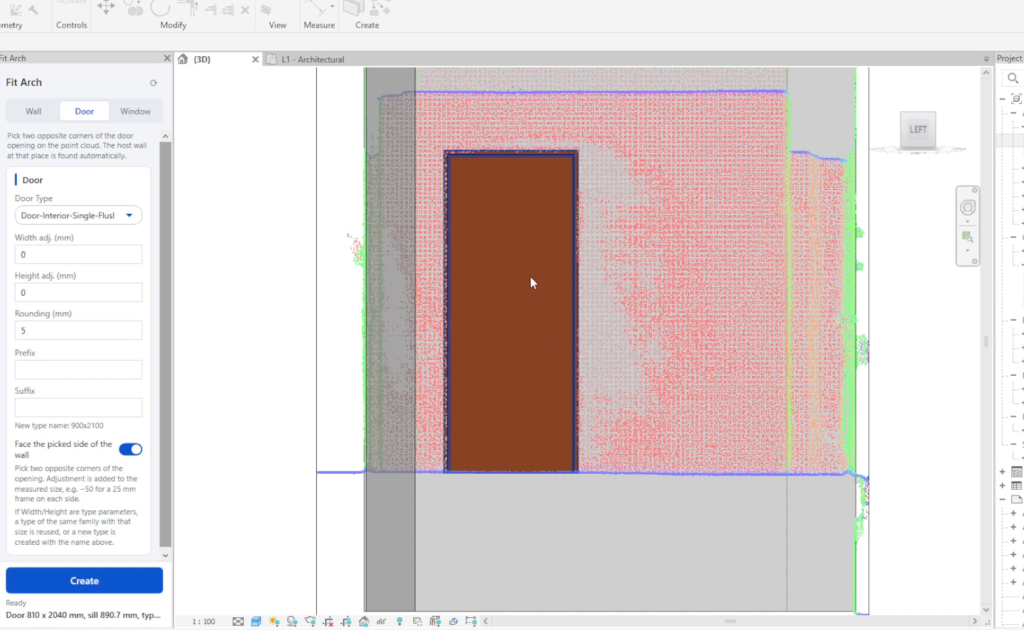
A door placed from two picked corners, sized 810 x 2040 mm from the scan.
Windows work the same way as doors. Pick two corners of the window opening, and Fit Arch places a window that fits it and reads the sill height from the scan.
The settings are the same as on the Door tab. The only difference is Window Type, which replaces Door Type, for example Instance-Window-Fixed. A positive adjustment such as +50 mm makes the window slightly larger than the opening, which helps when the scan only shows the inside edge of the frame.
How to use it
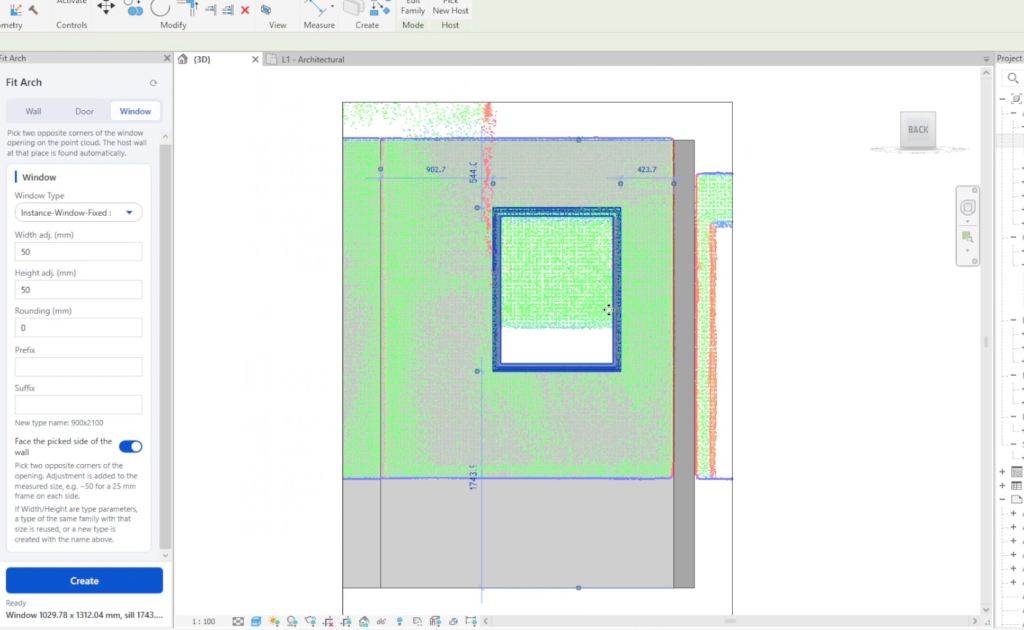
A fixed window fitted to the scanned opening, with its sill height read from the point cloud.
Do walls first. Doors and windows need a host wall, so model the walls before the openings.
Use a section box. Cropping the point cloud to one room or one floor makes it easier to pick faces and corners.
Work in an elevation for openings. Looking straight at the wall makes it easier to hit the corners of a door or window.
Why do I get a different type for every wall? The scan has small variations in thickness. Raise Rounding to 10 mm, for example, to group similar walls under one type.
My walls are slightly skewed. Turn on Snap to project axes / grids and set a small angular tolerance. Walls within that angle are straightened.
The door is the size of the rough opening, not the leaf. Use a negative width and height adjustment, such as −50 mm, to account for the frame.
Can Revit create walls from a point cloud automatically? Not out of the box. Revit shows the point cloud, but you still draw every wall by hand. A plugin like Fit Arch reads the scanned faces and creates the wall, its thickness and its type for you.
What is a good Revit plugin for point cloud modeling? Fit Arch in the Zeta BIM add-in covers the core of scan-to-BIM architecture: walls, doors and windows, sized from the scan, all from one panel inside Revit.
Which point cloud files does it work with? Any point cloud you can link into Revit (RCP/RCS from Autodesk ReCap) works with Fit Arch, because it picks directly on the linked cloud.
Watch the 2-minute demo to see Fit Arch model walls, a door and a window from a real scan. Then try it on your own project from the Zeta BIM tab in Revit.
Ready to speed up your scan-to-BIM work? Download Zeta BIM and start modeling from point clouds today.